
Most people count down to more than one thing: a trip, a birthday, an exam, a deadline. A single widget only shows one of them. Here are the two ways to keep several countdowns on your Android home screen, and which one fits you.
Quick Answer
To show multiple countdowns on an Android home screen, add several widgets, one per event, or one list widget that shows your 5 nearest events or the events you choose. Countdown Days Widget by MaslonLabs offers both. Both are Premium features, because the free plan includes 1 widget.
Two Ways to Show Multiple Countdowns
| Several widgets | One list widget | |
|---|---|---|
| What you get | One widget per event, each with its own look | One widget that lists several events |
| How many events | As many widgets as you add | Your 5 nearest events, or the events you choose |
| Best for | A few big, eye-catching countdowns | Many dates in little space |
| Plan | Premium (free plan: 1 widget) | Premium |
Both ways use Countdown Days Widget by MaslonLabs, the publisher of this site. See the app page for every feature.
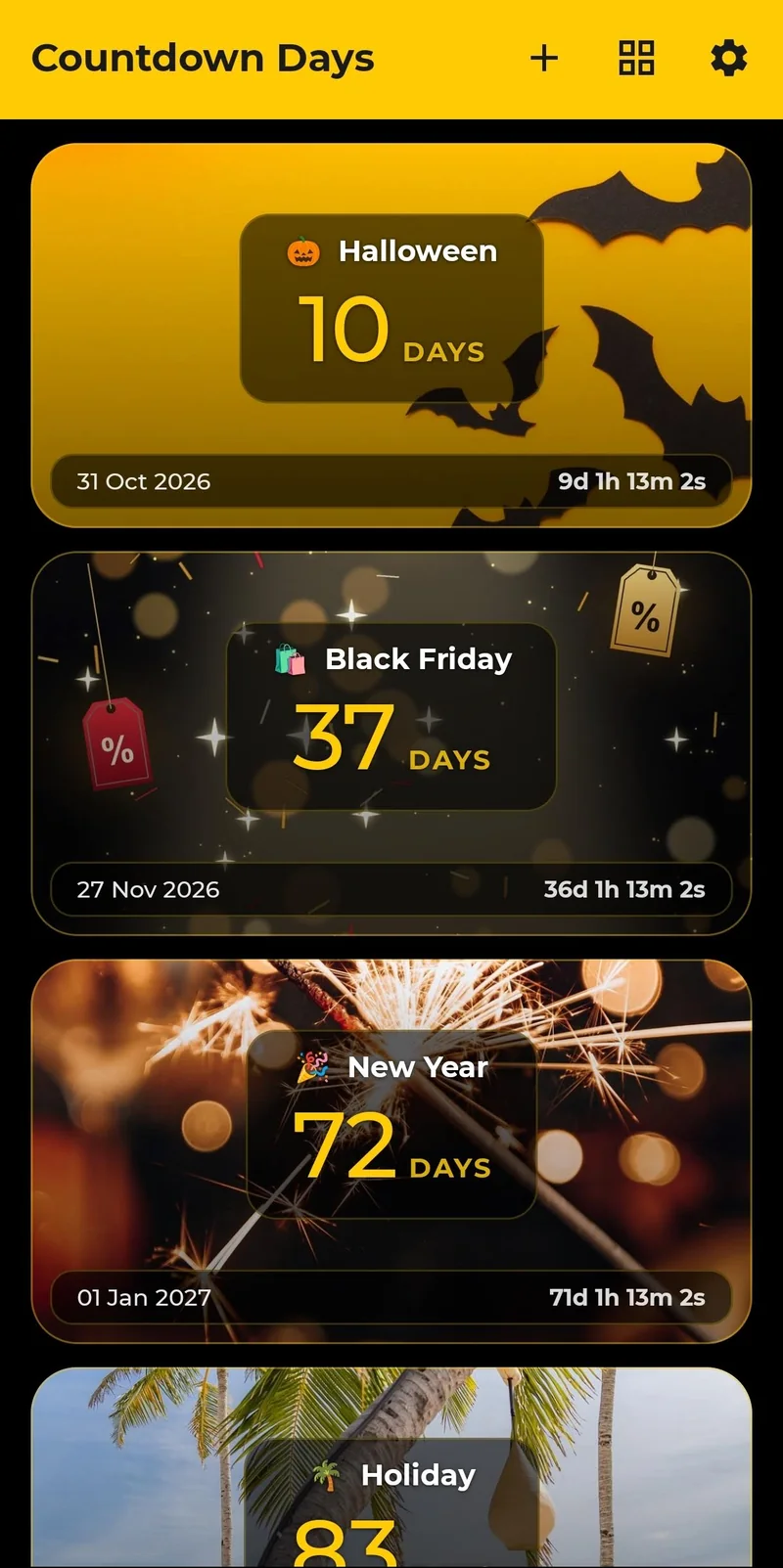
Before You Start: Add Your Events
- Open the app and tap + on the main screen.
- Enter a name and date, and optionally an emoji, a photo and reminders. Or pick a ready-made holiday from Popular events.
- Repeat for each date you want to count down to. The free plan holds up to 4 events, and Premium removes the limit.
Method 1: Add Several Widgets
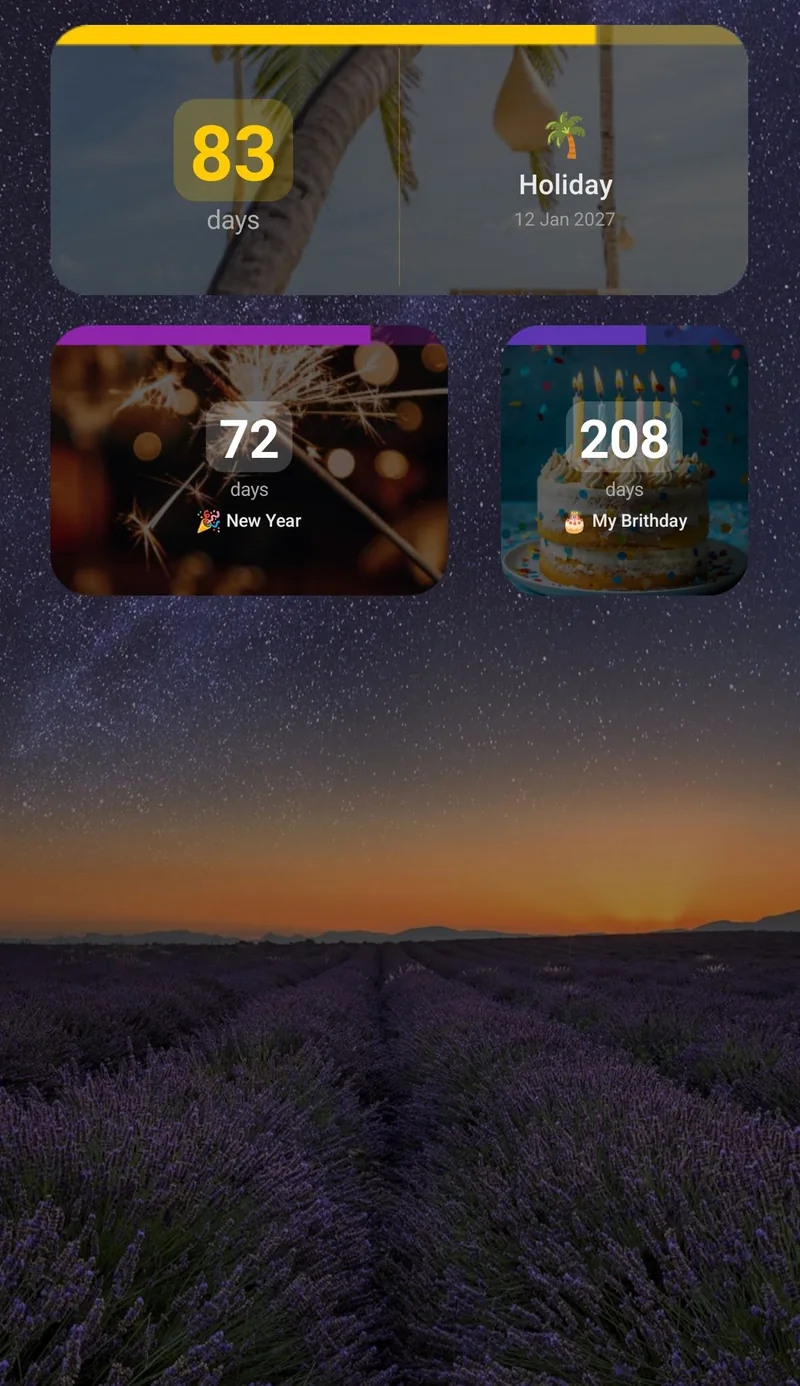
This is the standard way to keep more than one countdown on screen: one widget for each event.
- Long-press an empty spot on your home screen.
- Tap Widgets and find Countdown Days Widget.
- Pick a size and place it on the screen.
- Choose the event and how it should look.
- Repeat for the next event. You can resize each widget afterwards by dragging its edges.
There are five single-event sizes: tiny, small, narrow, medium and strip, so you can mix a large card for your next big date with small ones for the rest. On the free plan you can add 1 widget; Premium removes the limit.
Method 2: Use the List Widget
The list widget puts several events into one widget, so it takes the space of a single widget instead of five.
- Long-press an empty spot on your home screen and tap Widgets.
- Find the Countdown Days list widget and place it on the screen.
- Choose what it shows: your 5 nearest events, or pick the events yourself.
- Customize it: colours, a background image and more.
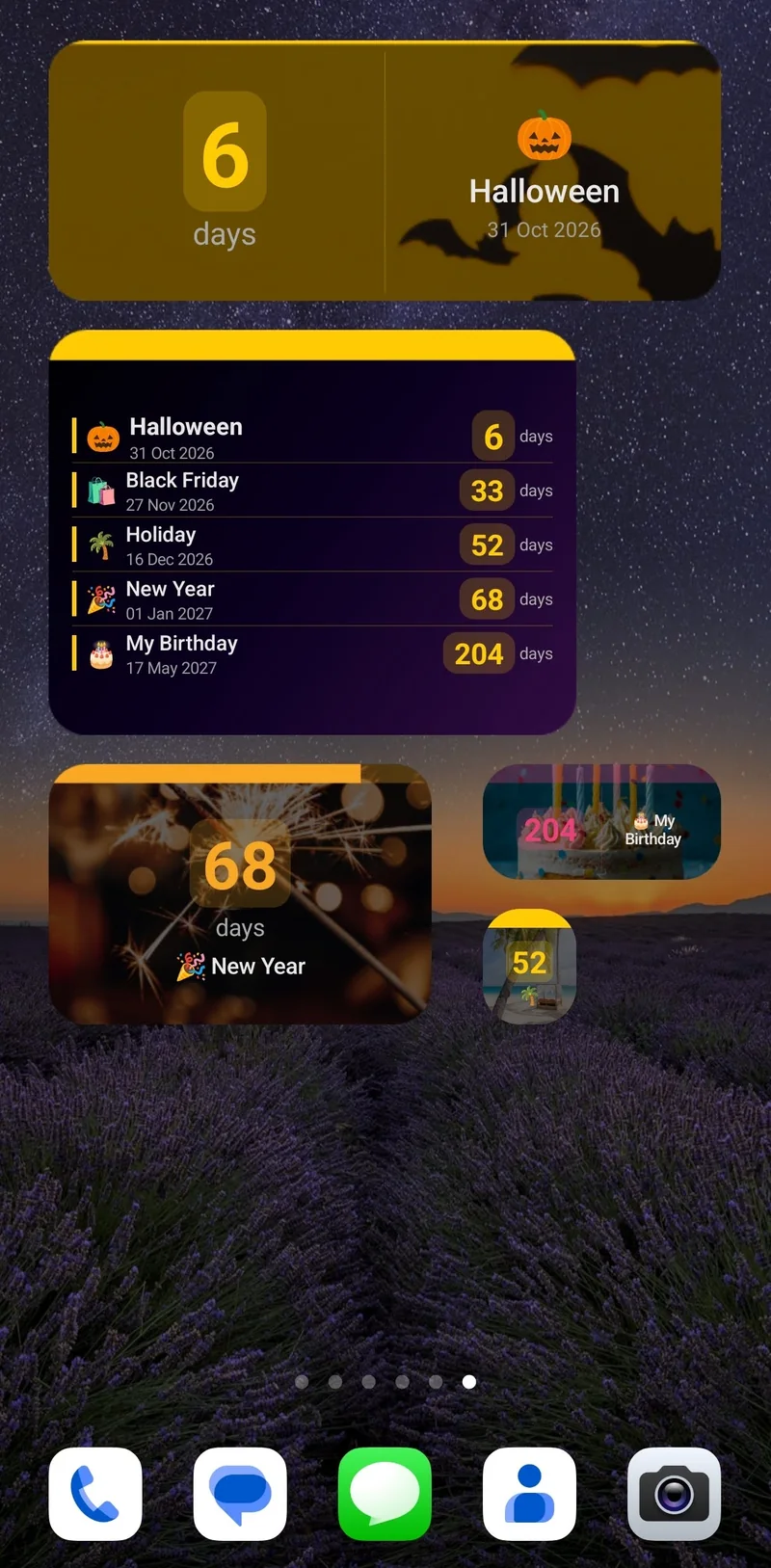
The list widget is a Premium feature. It is a good fit when you track many dates, for example birthdays, a trip and a deadline, and want them all in one glance.
Make the Widgets Match Your Home Screen
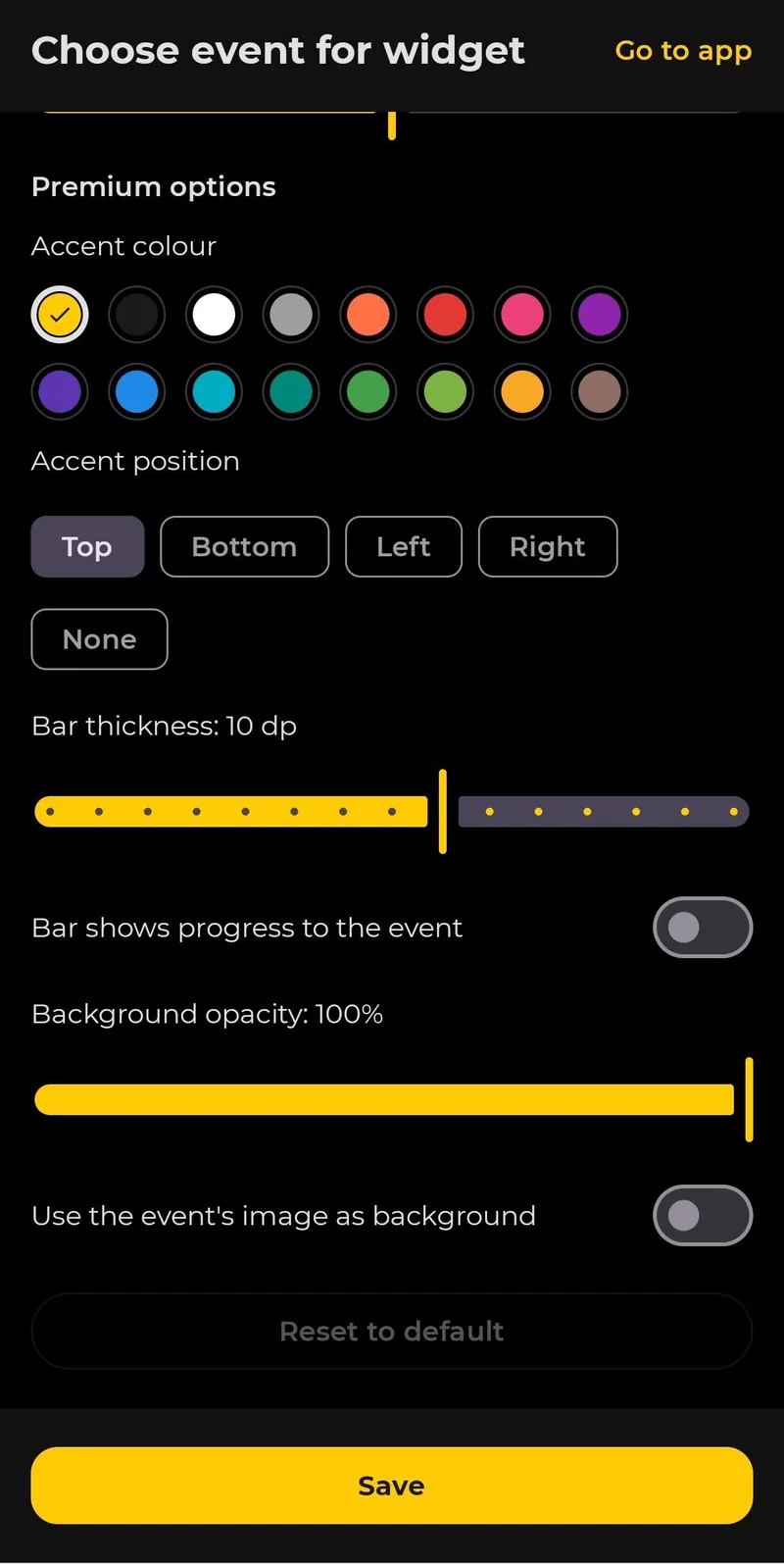
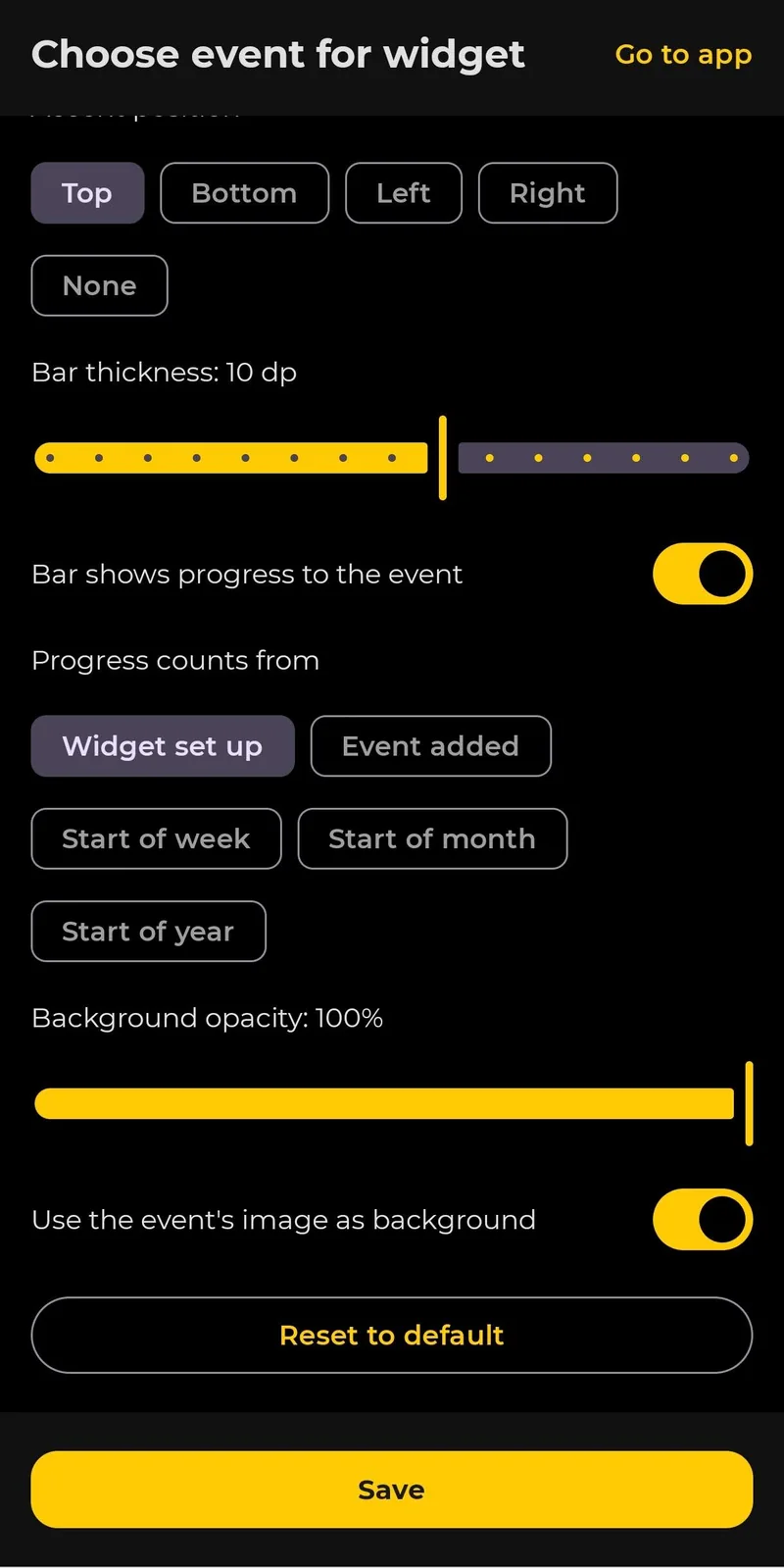
Each widget has its own look. Free widgets can be dark or light with an adjustable font size, and you choose whether to show the emoji, name, date and the days label. Premium adds accent colours, the accent bar, a progress bar that fills as the event gets closer, background opacity and your event photo as the background. The screens below show these settings for a single-event widget.
Which Should You Choose?
- One or two dates that matter most: add separate widgets, so each countdown is large and clear.
- Many dates: use the list widget, so everything fits in one place.
- Both: keep a big widget for your next event and a list widget for the rest.
Do not forget reminders. Each event can also send you notifications daily, weekly, monthly or before the date, each at an exact time. For general widget steps on Samsung and Pixel phones, see our guide to adding a countdown widget to your Android home screen, for ideas, see the vacation countdown widget and retirement countdown widget guides, for a seasonal example, see our Christmas countdown widget guide, and for other options read our comparison of the best countdown widget apps for Android.
Free vs. Premium
| Free | Premium | |
|---|---|---|
| Events | Up to 4 | Unlimited |
| Home screen widgets | 1 | Unlimited |
| List widget | — | Included |
| Widget customization | Basic: dark or light, font size, what to show | Full: accent colours, progress bar, opacity, event photo background |
| Ads | Yes | No ads |
Premium comes as a monthly subscription (with a 7-day free trial for eligible new subscribers), a yearly subscription or a one-time lifetime purchase. A trial becomes a paid subscription unless you cancel in Google Play before it ends.
Want all your countdowns on one home screen?
See Countdown Days Widget →You can also go straight to Countdown Days Widget on Google Play.
To check how many days are left until any single date, try our free days until date calculator.
Need ideas for what to add? See our guides to a Black Friday countdown widget, a New Year countdown widget and a Ramadan countdown widget.
Frequently Asked Questions
Can I show more than one countdown on my Android home screen?
Yes. You can add several countdown widgets, one for each event, or one list widget that shows several events at once. In Countdown Days Widget both options are Premium features.
How many events does the list widget show?
The list widget can show your 5 nearest events, or you can choose the events yourself.
Is the list widget free?
No. The list widget is a Premium feature. The free plan includes 1 home screen widget with basic customization.
Can I change the colours and background of the list widget?
Yes. You can customize the list widget, including its colours and background image.
How many widgets can I add?
The free plan allows 1 widget. Premium removes the limit, so you can add as many widgets as you like, in five single-event sizes plus the list widget.
Is there a free trial for Premium?
The monthly Premium plan has a 7-day free trial for eligible new subscribers. A trial becomes a paid subscription unless you cancel in Google Play before it ends.
Which Android versions are supported?
Countdown Days Widget requires Android 7.0 or newer.