
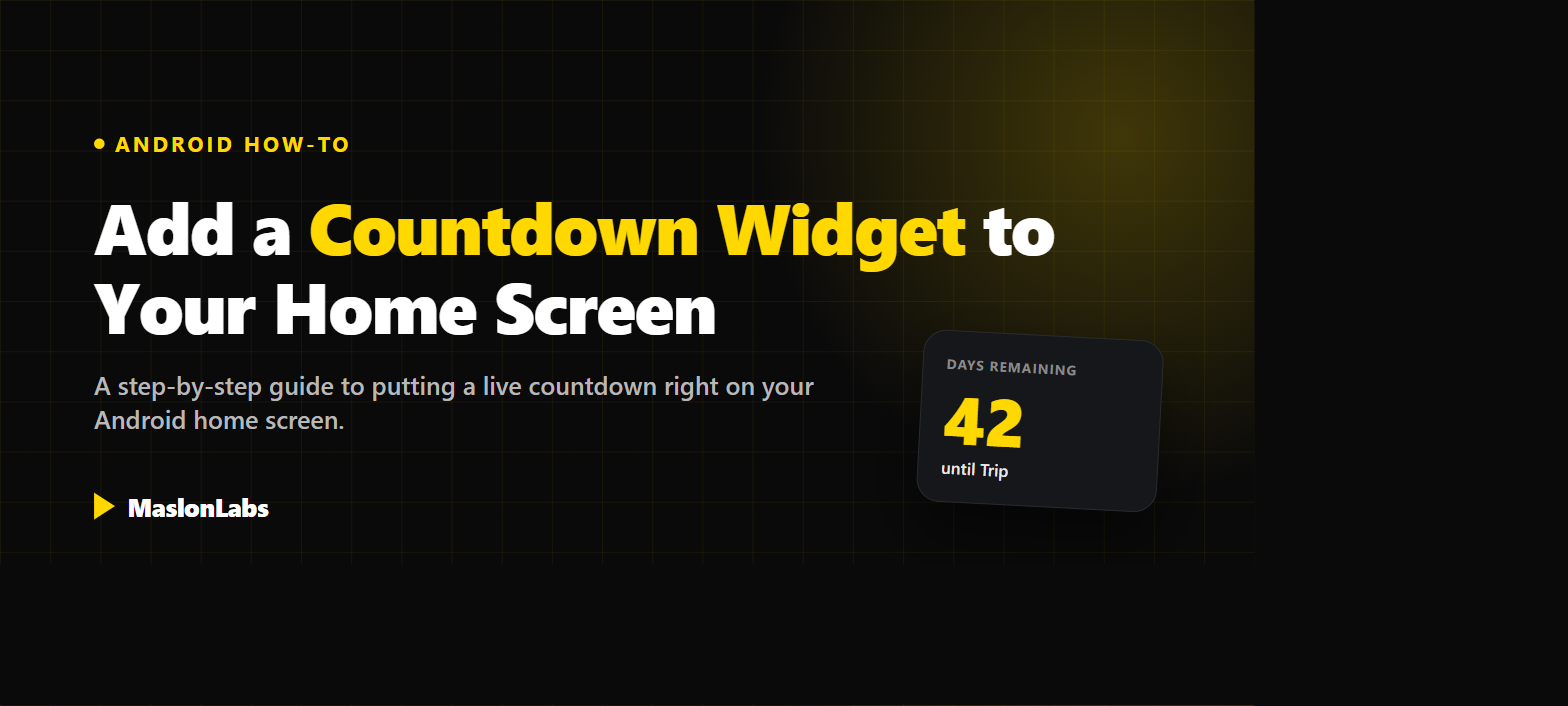
A countdown widget puts the exact number of days until an important date — a birthday, a wedding, a trip — right on your Android home screen, with no need to open an app to check. Here is how to add one in under a minute, and how to choose a countdown widget app that is actually worth keeping there.
Never lose track of an important date again.
Try Countdown Days by MaslonLabs →What Is a Home Screen Widget?
A widget is a small, live-updating window that sits directly on your Android home screen, separate from the app itself. Instead of opening an app to check a piece of information, a widget shows it to you at a glance — a clock, the weather, or in this case, the number of days remaining until an event. Widgets have been a core part of Android since its earliest versions, and virtually every Android phone supports them.
How to Add a Countdown Widget to Your Android Home Screen
The exact menu names vary slightly by phone brand, but the flow is nearly identical across Android versions:
- Install a countdown app with widget support. Download a countdown app that includes a home screen widget, such as Countdown Days, from the Google Play Store.
- Long-press an empty area of your home screen. Touch and hold any empty spot on your home screen until a menu appears.
- Tap “Widgets”. Select “Widgets” from the menu. On Samsung phones this opens a widget panel; on Pixel and stock Android it opens a scrollable widget picker.
- Find your countdown app in the list. Scroll through the widget list (usually organized alphabetically by app name) until you find your countdown app.
- Drag the widget onto your home screen. Long-press the widget preview and drag it to an open spot on your home screen, then release.
- Resize and configure it. Drag the corner handles to resize the widget if needed, then tap it to choose which event it should display.
On Samsung phones, this same long-press gesture opens a dedicated “Widgets” panel at the bottom of the screen. On Pixel and most stock Android phones, it opens a full-screen widget picker you can scroll or search.
Countdown Widget on Samsung, Pixel, and Other Android Phones
The core steps above work the same everywhere, but the widget menu itself looks a little different depending on your phone. Here is what to expect on the two most common setups.
Adding a Countdown Widget on Samsung (One UI)
On a Samsung Galaxy phone, long-pressing an empty spot on the home screen opens the Widgets panel as a scrollable tray at the bottom of the screen rather than a full-screen picker. Samsung phones also have a built-in option: the Samsung Calendar app includes its own Countdown widget (see does Samsung have a countdown widget?). To use it, or the widget from a countdown app you installed, find it in that tray, then drag the widget up onto the home screen. Samsung’s One UI also lets you long-press an already-placed widget to resize it or jump straight to the app’s settings.
Adding a Countdown Widget on Google Pixel
On a Pixel (and most phones running close-to-stock Android), the same long-press opens a full-screen widget picker you can scroll through or search by app name. Find your countdown app, long-press its widget preview, and drag it onto whichever home screen panel you want it on. Pixel launchers also support a search bar at the top of the widget picker, which is the fastest way to find it if you have a lot of apps installed.
Other Android skins (OnePlus, Xiaomi, Motorola) follow the same basic pattern — long-press, tap Widgets, find the app, drag it into place — with only minor cosmetic differences in the menu.
Want a countdown widget on your home screen?
Check Countdown Days by MaslonLabs →Widget Not Updating or Showing the Wrong Date?
- Battery optimization killing the app in the background — go to your phone’s battery settings and make sure the countdown app is not restricted, so it can refresh the widget on schedule.
- Widget stuck at an old value — remove the widget from your home screen and add it again; this forces a fresh instance to load.
- Wrong event showing — if you track multiple events, double-check that each individual widget on your home screen is linked to the event you actually want it to display.
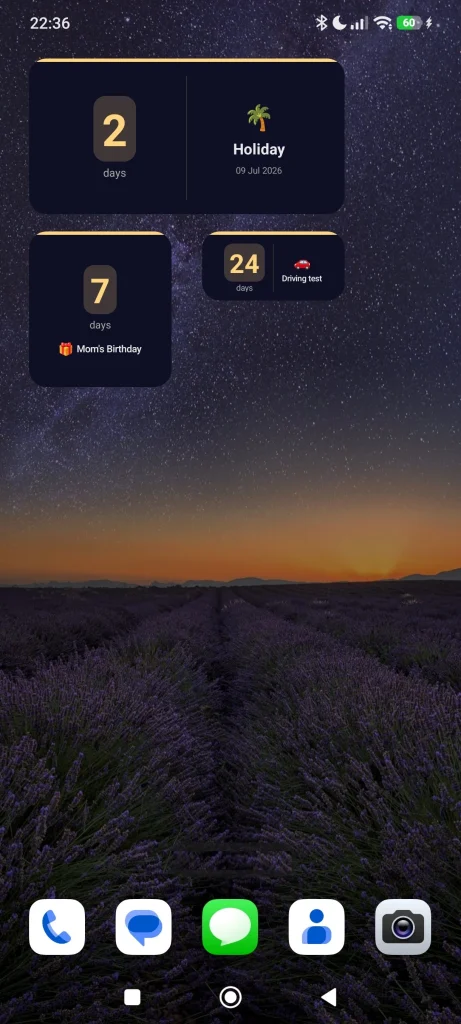
The Best Countdown Widget App for Android
Not every countdown app takes widgets seriously (see our comparison of the best countdown widget apps for Android) — some treat them as an afterthought, with a single plain size and no customization. Countdown Days by MaslonLabs was built with the widget as a core feature, not an add-on:
- 3 widget sizes so it fits your layout, whether you want a small glanceable number or a larger card with more detail.
- Beautiful countdown cards with emoji support, so every event is instantly recognizable.
- Custom reminders — daily, weekly, monthly, or a set number of days before the event, on top of the widget itself.
- Recurring events for birthdays and anniversaries that come back every year (Premium).
You can read the full feature breakdown on our Countdown Days app page, or go straight to Countdown Days on Google Play.
Ready to count down to your next big day?
Get Countdown Days by MaslonLabs →Frequently Asked Questions
Do countdown widgets drain my phone’s battery?
A well-built countdown widget uses minimal battery, since it only needs to refresh the displayed number once a day, not continuously. If you notice a specific widget draining battery, check whether the app is exempt from your phone’s battery optimization in a way that keeps it constantly active in the background.
Can I add more than one countdown widget for different events?
Yes. Most countdown apps, including Countdown Days, let you add multiple separate widget instances on your home screen, each configured to show a different event.
Do countdown widgets work without an internet connection?
Yes. Countdown widgets calculate the remaining time locally based on your phone’s clock and the date you set, so they work completely offline.
Can I change what a widget shows after I have already added it?
Yes. Tap the widget on your home screen (or open its settings icon, if it has one) to change which event or date it displays.
Why is my widget stuck showing the wrong number of days?
This usually means the app was force-stopped or restricted by battery optimization and has not refreshed. Removing the widget and adding it again, or checking that the app is allowed to run in the background, typically fixes it.
How do I add a countdown widget on a Samsung phone?
Long-press an empty area of your home screen, then tap the Widgets tab that appears in the panel at the bottom of the screen. Find your countdown app there and drag its widget onto your home screen.
How do I add a countdown widget on a Google Pixel?
Long-press an empty area of your home screen, tap Widgets, then scroll or search for your countdown app in the full-screen picker. Long-press its widget preview and drag it onto your home screen.
Are countdown widgets available on all Android phones?
Home screen widgets are a core Android feature supported on virtually all Android phones and launchers, though the exact menu names (like Samsung’s widget panel versus the Pixel widget picker) vary slightly between manufacturers.
A countdown widget is a small addition to your home screen, but it is one you will glance at daily until the date finally arrives. Set it up once, and let your phone do the counting for you.