
You do not need a printer, scissors, or a box full of cardboard to turn a photo into a jigsaw puzzle anymore. In a couple of minutes, any photo on your phone — a vacation shot, a family portrait, a pet mid-jump — can become a fully playable digital puzzle you solve right on your Android phone’s screen. Here is exactly how to do it, plus how to pick the right settings so the puzzle is actually fun to solve.
Got a photo you’d love to turn into a puzzle?
Try Jigsaw Puzzle Maker by MaslonLabs →Why Make a Puzzle from Your Own Photo?
Store-bought jigsaw puzzles use generic stock images — a mountain, a painting, a cartoon. A puzzle built from your own photo is a completely different experience: you already know what the finished picture looks like, so watching it come together piece by piece feels personal instead of random. It is also faster and cheaper than any physical alternative — no shipping, no missing pieces, and no box taking up space in a drawer afterward.
How to Turn a Photo Into a Jigsaw Puzzle on Android
The process takes under two minutes from start to finish:
- Pick a photo with clear detail. Choose a photo with good contrast and distinct areas — landscapes, group photos, and pets all work well. Very plain or blurry photos are harder to solve since the pieces look too similar.
- Install a photo-to-puzzle app. Download an Android puzzle app that lets you import your own images, such as Photo Puzzle Maker, from the Google Play Store.
- Import the photo from your gallery. Open the app and select the photo you want to turn into a puzzle directly from your phone’s camera roll or gallery.
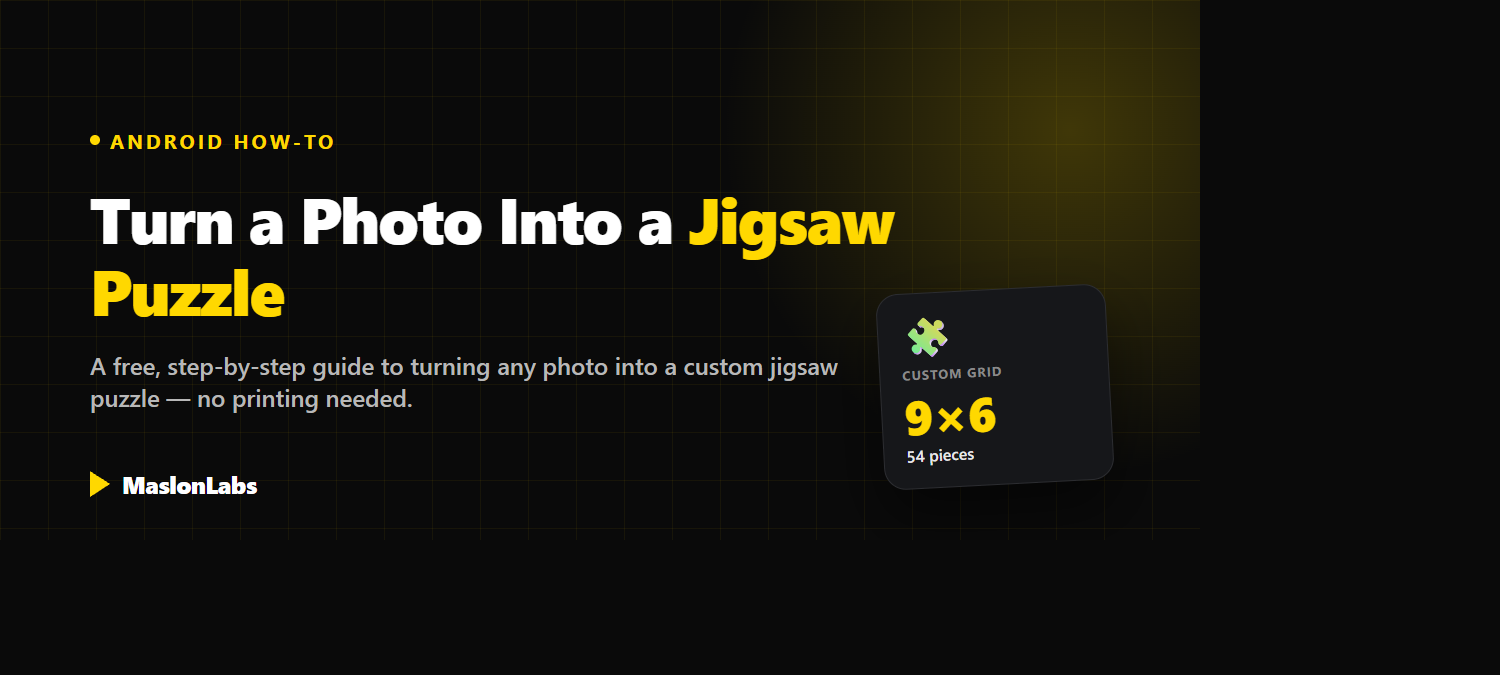
- Choose your grid size and difficulty. Pick how many pieces you want — a small grid like 3×3 for young kids, or a large one like 9×6 or higher for a real challenge.
- Let the app cut the photo into pieces. The app automatically slices your photo into interlocking (or sliding) puzzle pieces and scrambles them on screen.
- Solve it — or share it. Drag the pieces back into place to solve your custom puzzle, or send it to a friend or family member to solve instead.
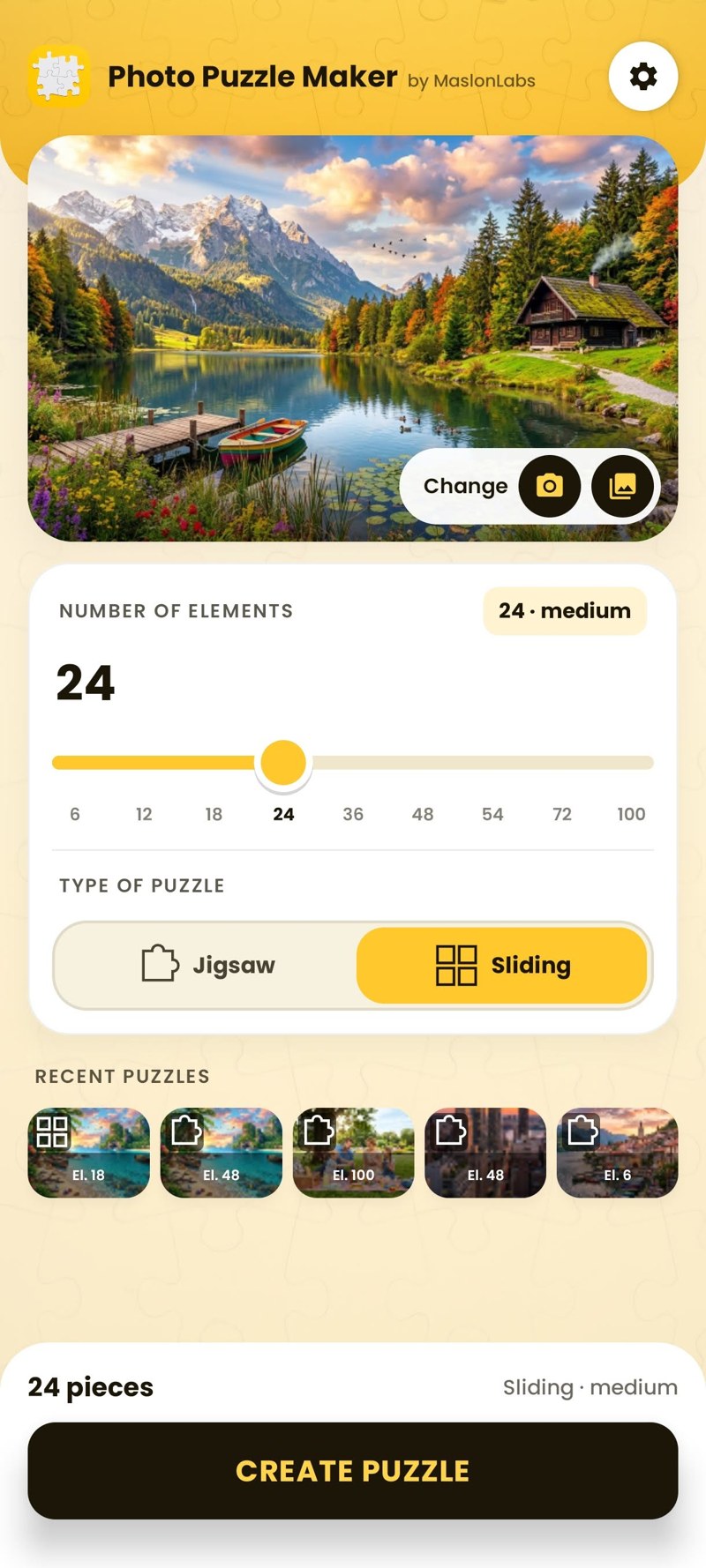
Want to create your own puzzle?
Check Jigsaw Puzzle Maker by MaslonLabs →How to Choose the Right Grid Size
The number of pieces is the single biggest factor in how enjoyable a photo puzzle is to solve:
- 9 to 20 pieces — ideal for young children or a quick, relaxed solve.
- 30 to 80 pieces — a comfortable challenge for most teenagers and adults.
- 100+ pieces — a genuine challenge, best suited to detailed photos with lots of visual variety.
If a puzzle feels too easy or too hard, the fix is almost always the grid size, not the photo — drop down a size if pieces feel too small to tell apart, or go up if it is over too fast.
Tips for Choosing the Best Photo
- Pick photos with clear detail — landscapes, group shots, and pets all give plenty of visual cues to work from.
- Avoid very plain or low-contrast photos — a photo of a clear sky or a plain wall makes too many pieces look identical.
- Higher resolution photos hold up better at larger grid sizes, since each piece contains less of the original detail.
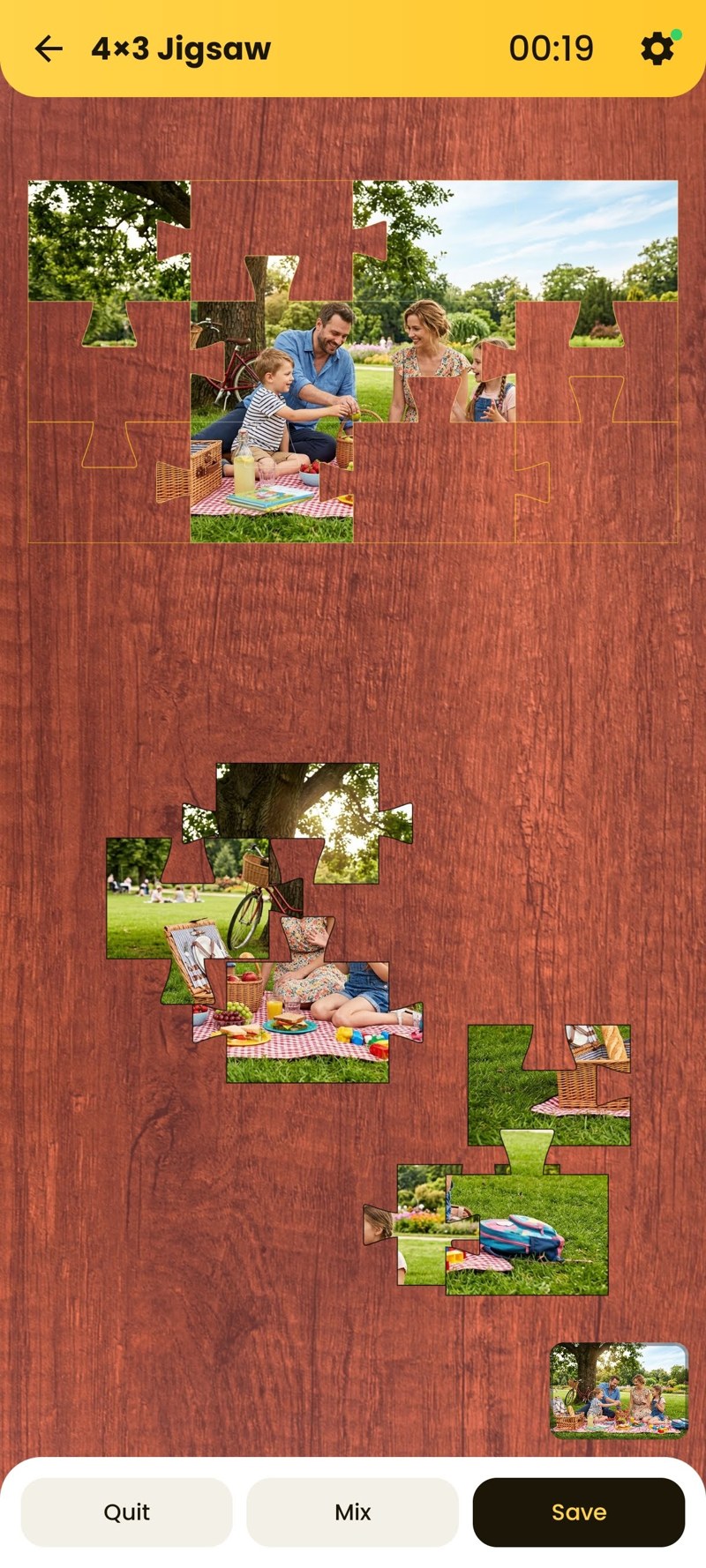
The Best Free App to Turn Photos Into Puzzles
Photo Puzzle Maker by MaslonLabs was built specifically for this — import any photo from your gallery and turn it into a custom jigsaw or sliding puzzle in seconds:
- Custom grid sizes, from a quick 9-piece puzzle to a challenging 100+ piece version.
- Two puzzle modes — classic interlocking jigsaw pieces, or a sliding 15-puzzle style.
- Use any photo straight from your camera roll, with no printing or account required.
- Free to play, with optional premium grid sizes and puzzle styles.
Read the full feature breakdown on our Photo Puzzle Maker app page, or get it directly from Google Play.
Ready to turn your own photos into a puzzle?
Get Jigsaw Puzzle Maker by MaslonLabs →Want to compare apps first? See our ranking of the best photo puzzle maker apps for Android, or read how to create your own puzzle from your photos with Photo Puzzle Maker.
Frequently Asked Questions
Do I need to print anything to make a photo puzzle?
No. Apps like Photo Puzzle Maker generate the entire jigsaw digitally — you import a photo and solve it directly on your phone screen, with no printer or physical pieces required.
What is the best type of photo to use for a puzzle?
Photos with clear subjects and varied color or detail work best — think vacation scenery, pets, or group photos. Avoid very plain or low-contrast images, since large flat areas make pieces harder to tell apart.
How many pieces should my puzzle have?
It depends on who is solving it. 9 to 20 pieces suits young children, 30 to 80 pieces is a comfortable challenge for most adults, and anything above 100 pieces makes for a genuinely difficult puzzle.
Can I turn a photo into a puzzle for free?
Yes. Photo Puzzle Maker lets you import a photo and generate a jigsaw puzzle for free, with optional premium features like extra grid sizes and puzzle styles.
Can I make a puzzle from a photo I did not take myself?
You can use any photo stored on your phone, but only turn images you have the rights to use — your own photos, or ones you have permission to use — into a puzzle, especially if you plan to share it.
Where can I download an app to make puzzles from photos on Android?
The best option is Photo Puzzle Maker by MaslonLabs, free to download from the Google Play Store.
Turning a photo into a jigsaw puzzle takes less time than picking one out at a store — and unlike a store-bought box, you will never end up with a piece missing under the couch.