
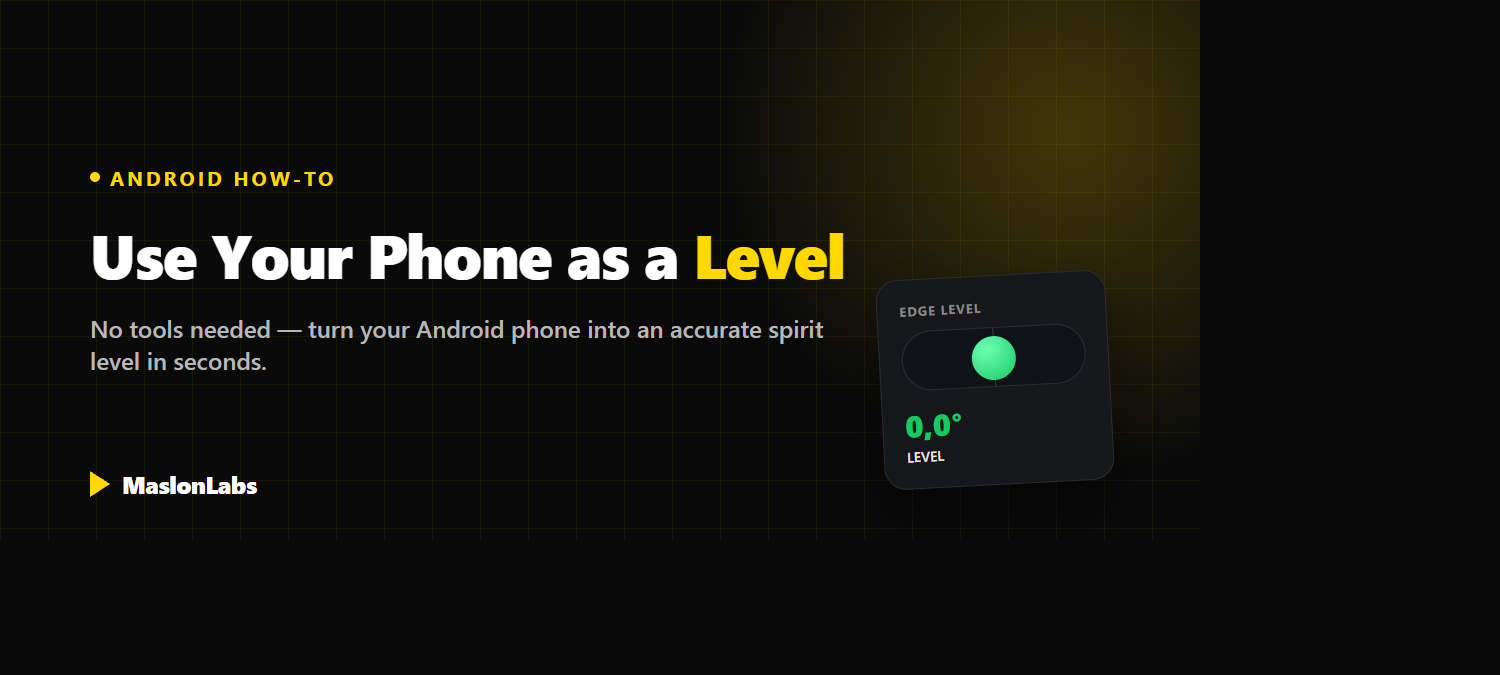
You don’t need to dig out a physical spirit level to check whether a picture frame is straight or a shelf is even. Every modern smartphone already has the sensor built in — you just need the right app to read it. Here’s how to turn your Android phone into an accurate level in seconds, and how to get the most reliable reading out of it.
Need a spirit level in your pocket, right now?
Try Bubble Level by MaslonLabs →Why Use Your Phone Instead of a Physical Level?
A phone is something you already have on you, so there’s no extra tool to buy, store, or hunt for in a drawer. Modern phone level apps read the same type of motion sensor found in dedicated digital levels, and many go further — showing the exact angle in degrees, saving readings, or switching between vertical and horizontal modes with a tap.
How Does a Phone-as-Level Actually Work?
Every smartphone contains an accelerometer — a tiny sensor that detects the pull of gravity and the phone’s orientation in space. A level app reads that sensor dozens of times per second and translates the tilt into a bubble position or an angle in degrees, exactly like the air bubble in a traditional spirit level, just measured electronically instead of visually.
How to Use Your Phone as a Level
The whole process takes a few seconds once the app is installed:
- Install a level app. Download a spirit level app that uses your phone’s built-in sensors, such as Bubble Level, from the Google Play Store.
- Place your phone against the surface. Rest the edge or back of your phone flat against whatever you’re checking — a shelf, a picture frame, a countertop.
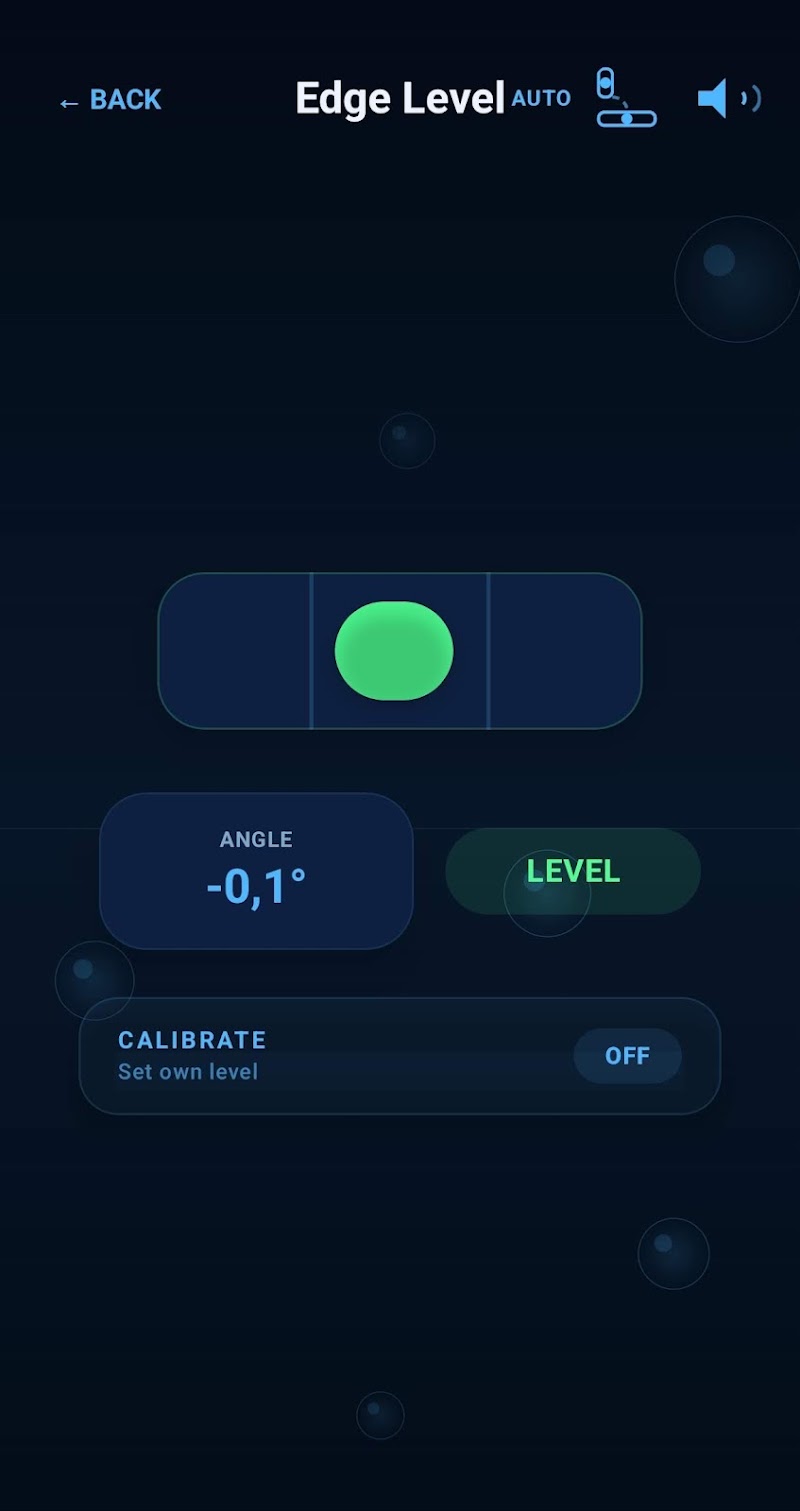
- Open the level tool and check the reading. Launch the app’s level screen. The bubble (or angle reading) updates in real time to show how far off-level the surface is.
- Adjust until it reads level. Tilt the surface slightly until the bubble centers in the middle of the tube, or the angle reads 0.0°.
- Switch modes for vertical surfaces. Use Edge Level mode for wall-mounted items like picture frames, or Surface Level mode for flat, horizontal surfaces like shelves and tables.
- Calibrate occasionally. Recalibrate the app every so often on a known-flat surface (like a factory-level countertop) to keep readings as accurate as possible.
How Accurate Is a Phone Level App?
A properly calibrated level app is typically accurate to within a fraction of a degree — more than precise enough for hanging art, mounting shelves, leveling furniture, or checking a washing machine. Accuracy depends on calibration and how flush the phone sits against the surface, so a quick calibration on a known-flat spot makes a real difference before any critical measurement.
Tips for the Most Accurate Reading
- Remove thick cases before measuring — uneven case edges can throw off how flush the phone sits against a surface.
- Calibrate on a known-flat surface, like a countertop or a table you’re confident is level, before you start.
- Hold the phone still for a second after placing it — most apps need a moment to settle on a stable reading.
- Use the matching mode — Edge Level for vertical surfaces like walls, Surface Level for flat horizontal ones.
The Best Level App for Android
Bubble Level by MaslonLabs turns your phone into a precise digital spirit level, built for exactly the situations above:
- Edge & Surface modes to cover both vertical and horizontal measurements.
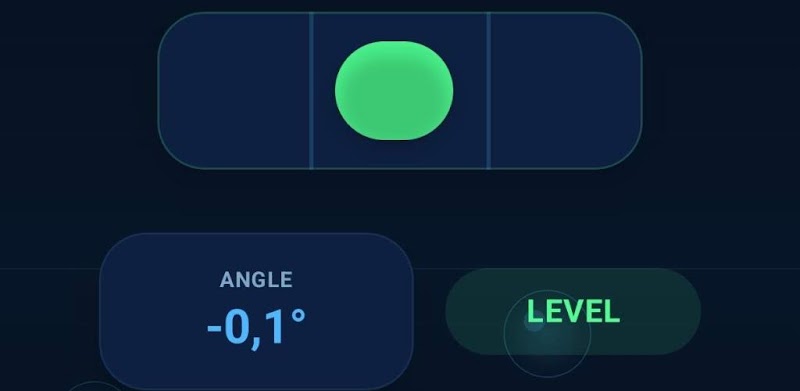
- Precise angle readings in degrees, with a clear visual bubble indicator that turns green when level.
- One-tap calibration to keep readings accurate over time.
- Clean, distraction-free interface — open it, check, done.
Always reaching for a spirit level you can never find?
Get Bubble Level by MaslonLabs →Read the full feature breakdown on our Bubble Level app page, or get it directly from Google Play.
Using your phone as a level at home? See our step-by-step guide on how to level a washing machine or fridge with your phone.
Setting up camp? Learn how to level an RV or camper with your phone.
Hanging something on the wall? See how to hang pictures straight with your phone.
Setting up a game room? See how to level a pool table with your phone.
Frequently Asked Questions
Is a phone level as accurate as a physical spirit level?
For most everyday tasks — hanging pictures, leveling shelves, checking furniture — a calibrated phone level app is accurate enough. A dedicated professional-grade spirit level can still edge it out for construction-tolerance work, but for household use the difference is rarely noticeable.
Do I need internet access to use a phone level app?
No. A level app reads your phone’s built-in accelerometer directly, so it works completely offline with no data connection required.
How do I calibrate my phone’s level app?
Most level apps have a calibration option in their settings. Place your phone on a surface you know is perfectly flat and stable, then tap calibrate — this resets the app’s zero point.
Can I use a phone level on a vertical wall?
Yes. Most level apps, including Bubble Level, include a dedicated Edge Level mode built specifically for checking picture frames, shelves, and other wall-mounted items.
Why is my phone level giving inconsistent readings?
This is usually caused by a thick phone case interfering with the sensor, an app that hasn’t been calibrated recently, or resting the phone on an uneven point instead of flush against the surface.
Where can I download a free level app for Android?
Bubble Level by MaslonLabs is free to download from the Google Play Store and includes both Edge and Surface level modes.
The next time something looks slightly crooked, you don’t need to go looking for a physical level — the sensor is already in your pocket.