
Pixel phones do a lot with widgets, but a simple “days until” counter does not appear to be one of them. Unlike Samsung, which has a countdown widget in Samsung Calendar, Google’s Pixel help pages do not list one. The good news is that adding a countdown takes a couple of minutes with a free app.
Quick Answer
We found no dedicated countdown widget in Google’s help pages for Pixel, Google Calendar or At a Glance. To add one, install a countdown app such as Countdown Days Widget by MaslonLabs, create your event, touch and hold an empty space on your home screen, tap Widgets and drag the countdown onto the screen.
Does Google Pixel Have a Built-In Countdown Widget?
Not that we could find. Here is what Google’s help pages describe (checked November 7, 2026):
- Google Calendar widgets: Google lists a schedule view and a month view, and neither is described as counting down.
- At a Glance: the widget at the top of the Pixel home screen can show future calendar events, along with weather and other updates, but its help page does not mention a days-left count. Pixel’s help page also says it cannot be moved.
Google adds features to Pixel regularly, so it is worth a quick look through your own widget list. If there is nothing there, a countdown app is the simple solution.
Want a countdown on your Pixel home screen?
Try Countdown Days Widget by MaslonLabs →How to Add a Countdown Widget on a Pixel
These steps use Countdown Days Widget by MaslonLabs, the publisher of this site, and follow Google’s steps for adding a Pixel widget. They work in the same way with other countdown apps. Google notes that some of its steps only work on Android 14 and up.
- Install Countdown Days Widget from Google Play and open it.
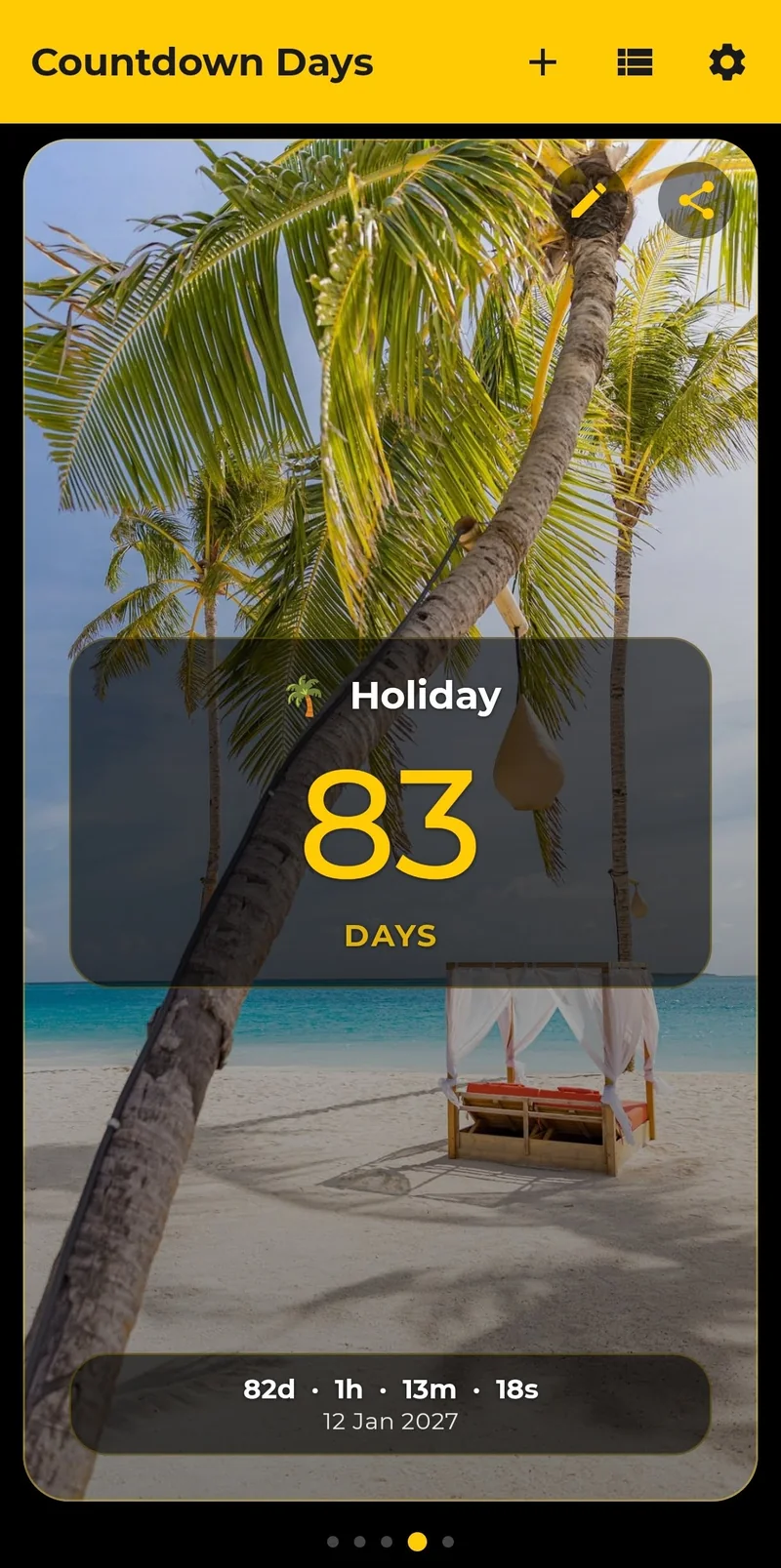
- Tap + and add your event, or choose one from Popular events.
- On your home screen, touch and hold an empty space.
- Tap Widgets and find Countdown Days Widget.
- Tap the app to see its widgets, then touch and hold the one you want.
- Slide it to where you want it, lift your finger and choose your event.
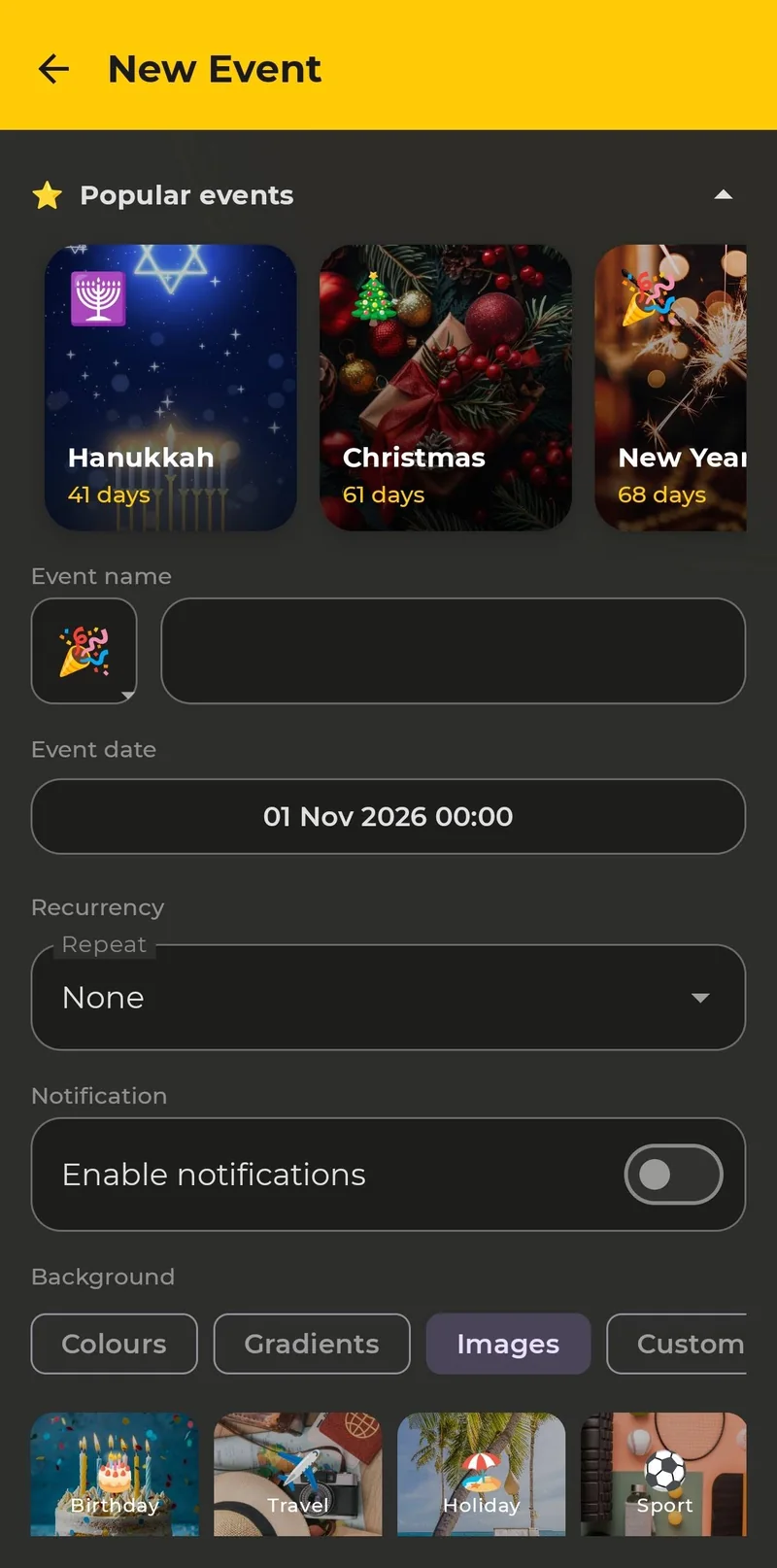
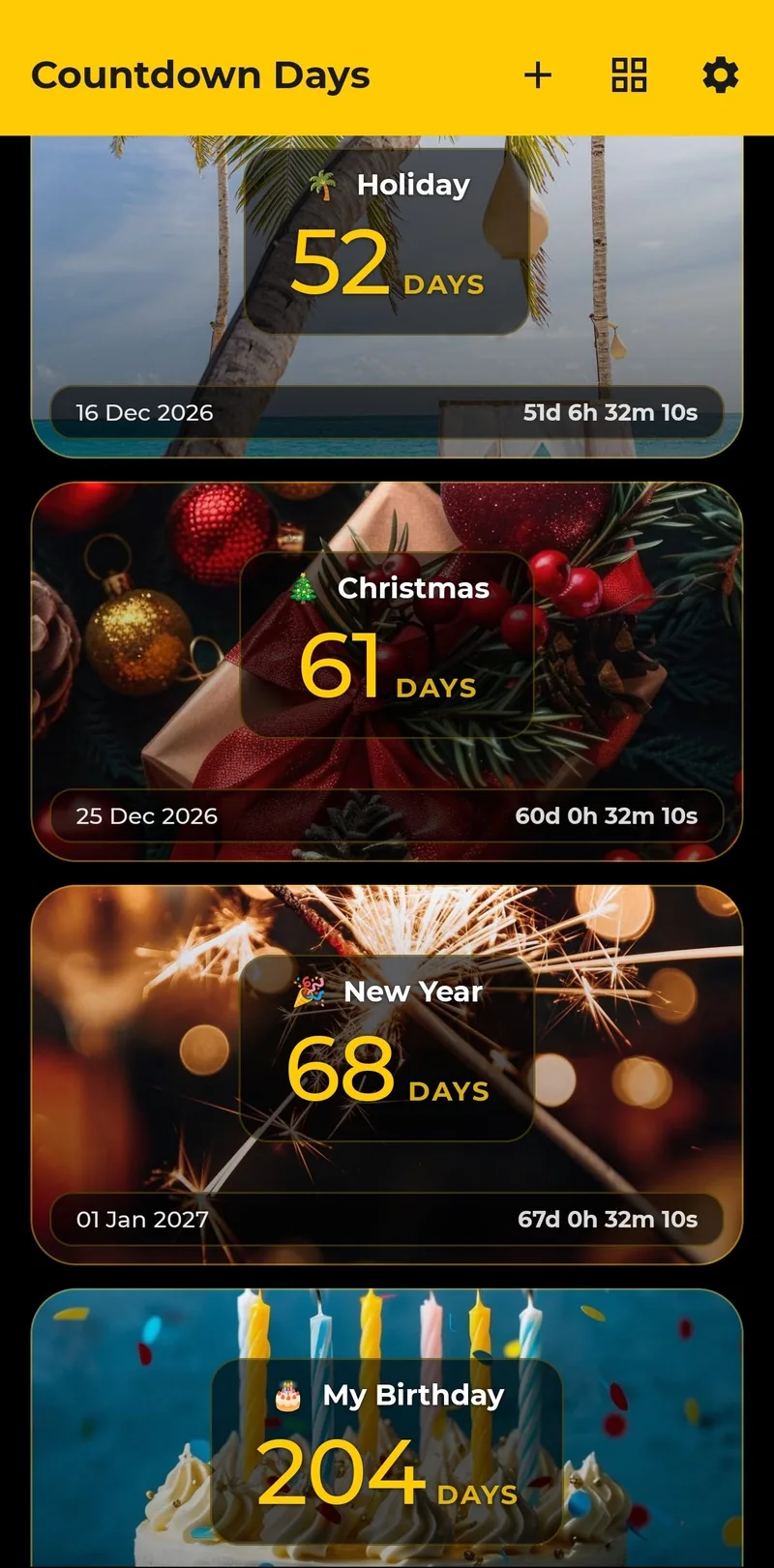
The widget now updates by itself, so you can see the days left each time you unlock your phone. Our general guide covers adding a countdown widget on any Android phone.
Resize the Widget
- Touch and hold the widget, then lift your finger.
- If it can be resized, an outline with dots appears on its sides.
- Drag the dots to the size you want.
- Tap outside the widget when you are done.
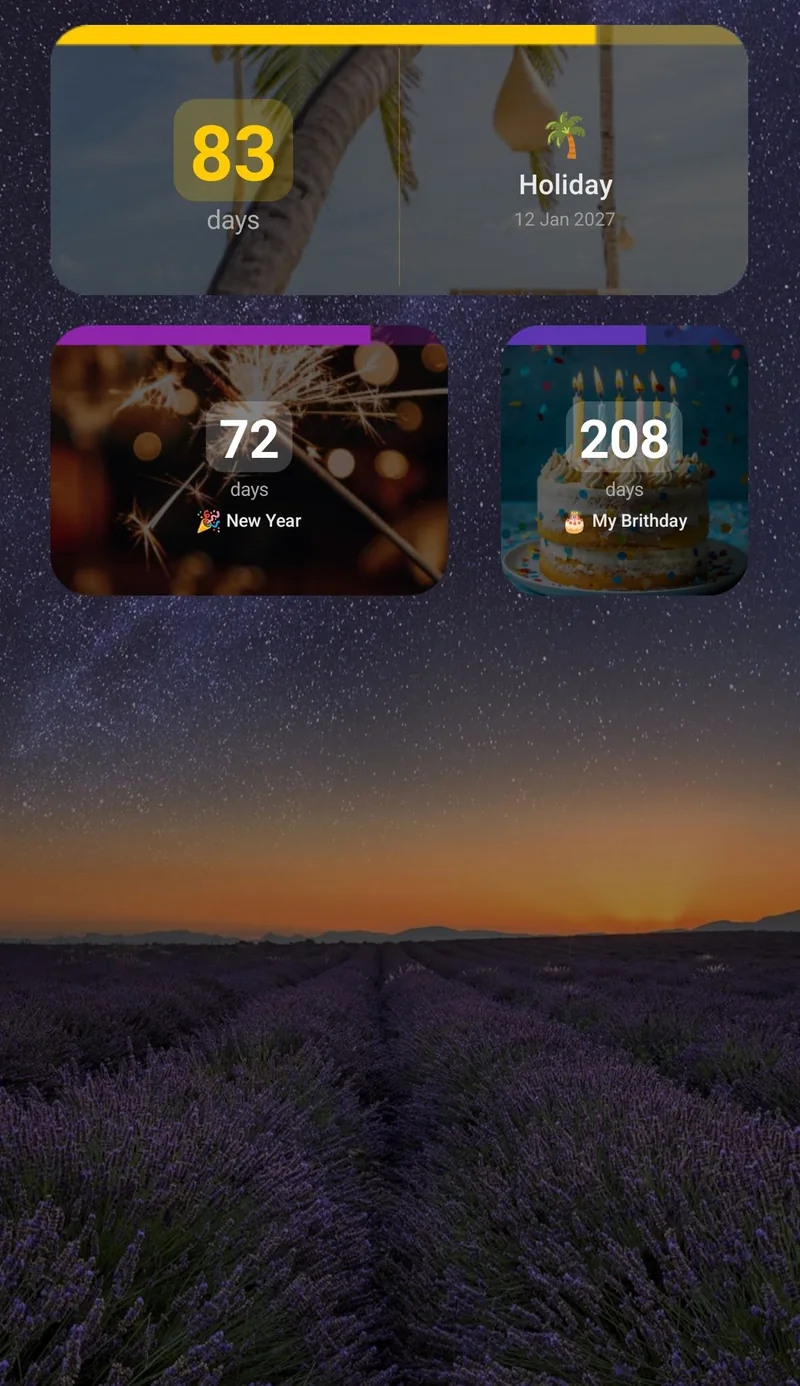
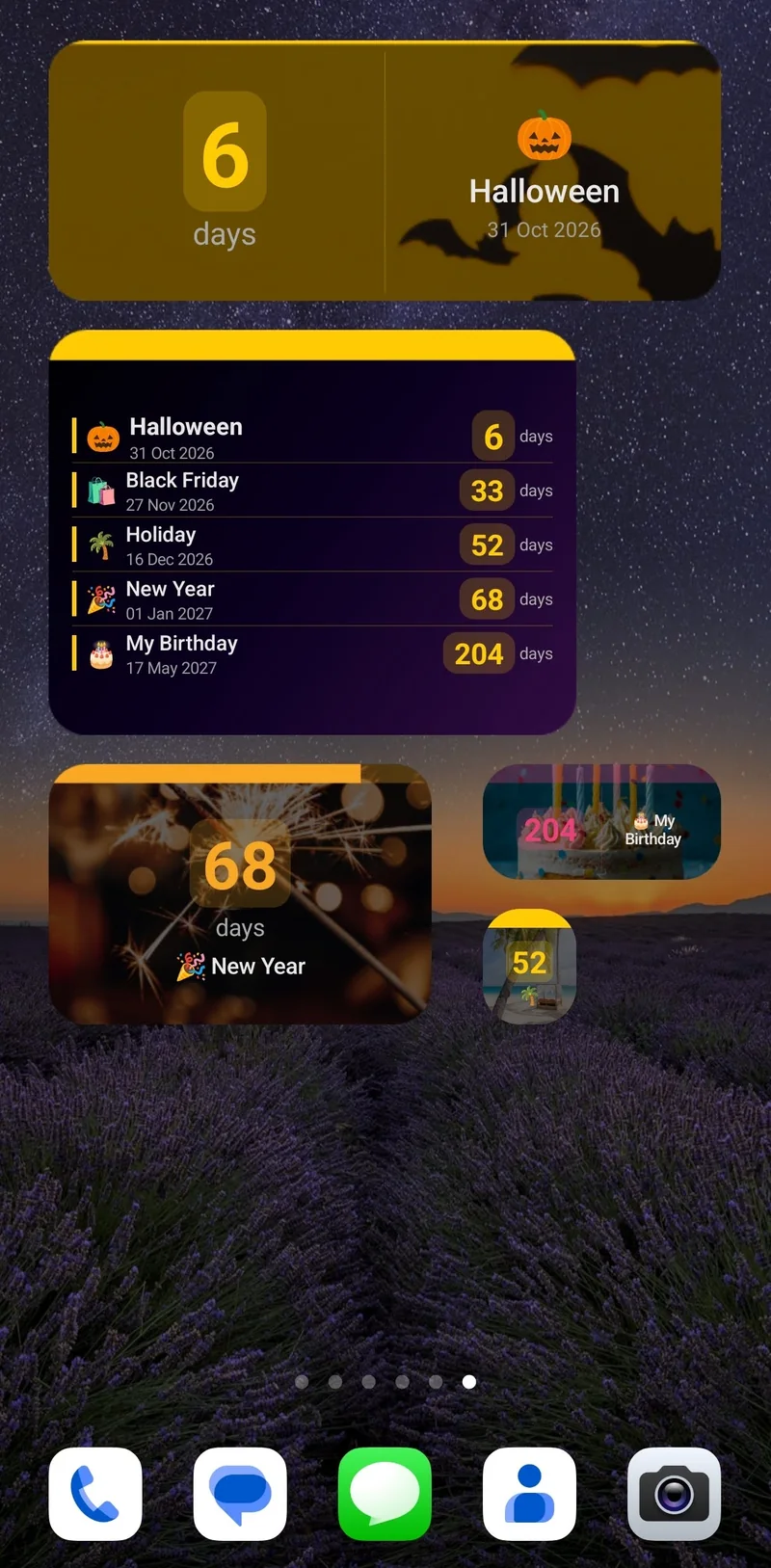
Countdown Days Widget has five single-event sizes: tiny, small, narrow, medium and strip. A small one fits beside your apps, and a strip works well above a row of icons.
Show Several Countdowns at Once
You can place one widget for each date, or use the list widget (Premium) to show your upcoming events in a single spot. See how to show multiple countdowns on your Android home screen for layouts that work well.
Make It Match Your Pixel
- Free: pick a dark or light widget, set the font size and choose what it shows.
- Premium: add accent colours, a progress bar, background opacity and your event photo as the background.
- Reminders: set them daily, weekly, monthly or before the event, each at an exact time. The free plan includes 2 per event.
Free vs. Premium
| Free | Premium | |
|---|---|---|
| Events | Up to 4 | Unlimited |
| Home screen widgets | 1 | Unlimited |
| Reminders per event | 2 | More |
| Widget customization | Basic: dark or light, font size, what to show | Full: accent colours, progress bar, opacity, event photo background |
| Repeating events | No | Yes |
| Ads | Yes | No ads |
Premium comes as a monthly subscription (with a 7-day free trial for eligible new subscribers), a yearly subscription or a one-time lifetime purchase. A trial becomes a paid subscription unless you cancel in Google Play before it ends.
Want to look at other options? Compare the best countdown widget apps for Android. If you only need the number once, our free days until date calculator works in any browser. You can also get Countdown Days Widget directly on Google Play.
Frequently Asked Questions
Does Google Pixel have a countdown widget?
We found no dedicated countdown widget in Google’s help pages for Pixel, Google Calendar or At a Glance. You can add one with a countdown app from Google Play.
Can Google Calendar show a countdown on Pixel?
Google describes two Calendar widgets, a schedule view and a month view. Neither is described as a days-left countdown, so you would use a separate app for that.
Does At a Glance show a countdown?
At a Glance can show future calendar events, but its help page does not mention a days-left count.
Is there a free countdown widget for Pixel?
Yes. The free plan of Countdown Days Widget by MaslonLabs includes up to 4 events, 1 home screen widget and basic customization, with ads. Premium removes ads and the limits.
Can I put a countdown on the Pixel lock screen?
Countdown Days Widget provides home screen widgets. Whether you can place widgets on the lock screen depends on your device and Android version, so check your phone’s settings.
Which Android versions are supported?
Countdown Days Widget requires Android 7.0 or newer.